🚗 Gig Worker Scheduled Rides Bot - User Guide
Your personal assistant for automated Gig Worker ride scheduling.
Bring Stability to Your Rideshare Income
🚀 Getting Started
Rideshare driving is unpredictable, but our bot brings stability to your earnings. Automatically claim pre-scheduled rides faster than competitors, set up intelligent scheduling rules based on various criteria, and monitor rides in real-time via Telegram. Configure weekly availability patterns, and let the bot work 24/7 to secure the best opportunities. Turn inconsistent gig work into a predictable income stream.
The bot does not increase the number of available rides or provide access to any secret information. Ride availability depends entirely on your market and location.
What the bot does is monitor available rides 24/7 and help you not miss the best opportunities by sending instant notifications and auto-booking rides that match your criteria.
What does this bot do?
1. Ride Monitoring & Notifications
Monitors for newly available pre-scheduled rides and sends instant notifications when they match your criteria. Behavior is controlled by:
- Notification Rules – Define which rides trigger alerts (time, location, price, etc.)
- Search Area – Geographic boundaries for monitoring
2. Automatic Ride Scheduling
Automatically books rides on your behalf based on your preferences. Behavior is controlled by:
- Auto-Schedule Rules – Conditions that must be met before booking
- Weekly Schedule – Your recurring availability patterns
- Schedule Area – Geographic boundaries for automatic bookings
Quick Setup
-
Start the bot by pressing Start button:
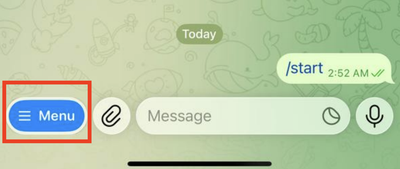
Use Menu button to get the available commands:
-
Use Open Configuration menu
/configcommand
-
In the opened 🛠 Configuration Menu dialog hit
🚀 Quick Start: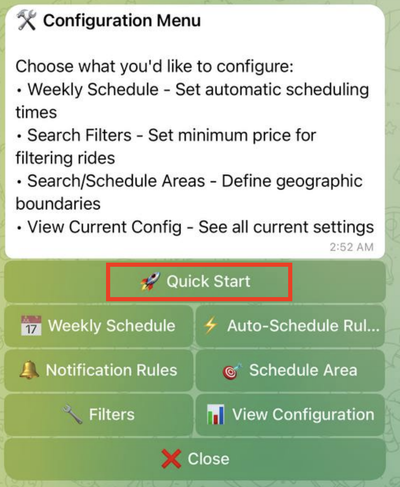
Quick Start is a 3-step wizard that helps you configure the bot in under a minute. See the Quick Start Guide section below for detailed instructions.
-
Set up auth tokens: Use
/sync_tokensand follow instructions -
Start monitoring: Use
/start_monitoring
💬 Questions? Need help getting started?
Contact Support🚀 Quick Start Wizard
Configure your bot in under a minute with this guided 3-5 step setup.
Step 1: Minimum Price 💰
Set the lowest ride price you'll accept. The bot creates a notification rule to alert you when rides meet or exceed this amount.
Choose from: $10, $20, $30, $40, $50, $60
Already configured? Click ✅ Keep $XX to preserve your current setting
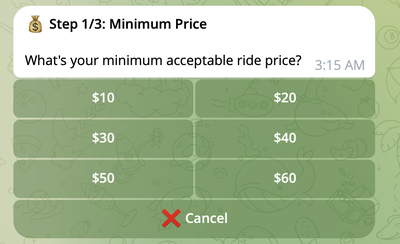
Example: Select $30 → Bot notifies you when
price ≥ $30
Step 2: Work Area 📍
Define your service area with a 12-mile radius circle.
Options:
-
📍 Share Location – Use GPS to set your current location as center
-
Type address – Manually enter an address (e.g.,
123 Main St, Los Angeles, CA) -
✅ Keep Current Area – Preserve existing area (if already configured)
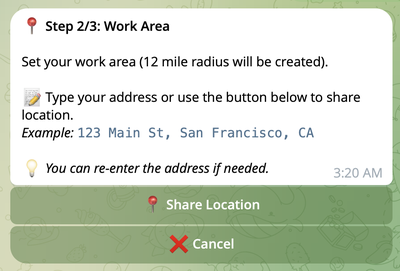
How it works:
- GPS sharing: Instant 12-mile radius creation → proceeds to Step 3
- Manual address: Bot finds matches → you select correct one → 12-mile radius created → proceeds to Step 3
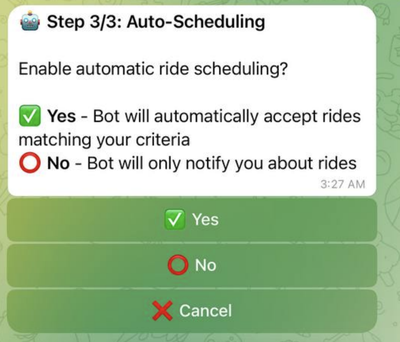
Step 3: Auto-Scheduling 🤖
Choose whether the bot automatically books rides or only sends notifications.
| Option | What Happens |
|---|---|
| ✅ Yes | Bot automatically accepts matching rides → Continue to Steps 4 & 5 |
| ⭕ No | Bot only sends notifications, you book manually → Setup complete |
Step 4: Work Days 📅
Only if auto-scheduling is enabled
Select which days the bot should automatically schedule rides.
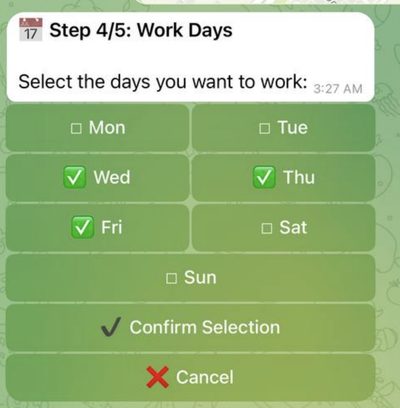
Click days to toggle on/off. ✅ indicates selected days.
Step 5: Work Hours ⏰
Only if auto-scheduling is enabled
Select your available time slots (each slot = 2 hours).
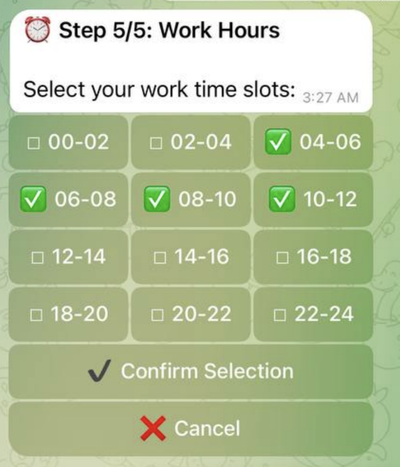
Click slots to toggle on/off. ✅ indicates selected slots.
✅ Setup Complete
The wizard automatically creates:
| Component | What It Does |
|---|---|
| Notification Rule | Alerts for rides ≥ your minimum price |
| Search Area | 12-mile radius monitoring zone |
| Auto-Schedule Rule (if enabled) | Books rides ≥ minimum price during your availability |
| Weekly Schedule (if enabled) | Your selected days and time slots |
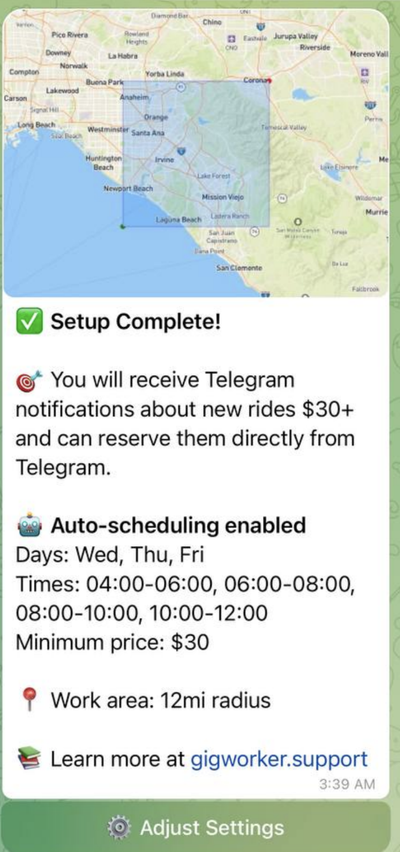
After Quick Start
Once you complete Quick Start, you can fine-tune settings in Configuration Menu (/config)
- Adjust notification and auto-schedule rules
- Adjust work area
- Modify time slots per day
- Temporarily pause auto-scheduling
How Notifications Work
Ride Notifications
When a ride matches your notification rules, the bot sends a Telegram message with ride details and a Reserve button for manual booking.
If the ride wasn't auto-scheduled, the message explains why:
Outside Scheduled Hours
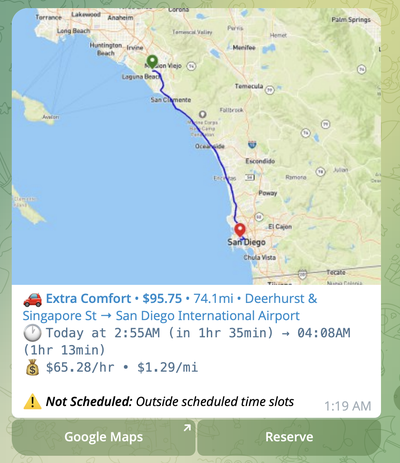
The ride starts outside your configured time slots.
Scheduling Conflict
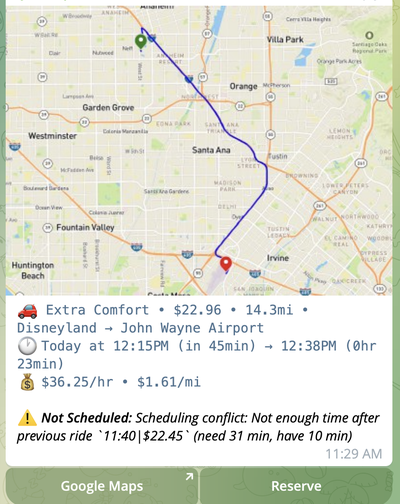
Not enough time to reach this ride from your previous one, or not enough time to reach your next ride after this one completes.
Outside Schedule Area
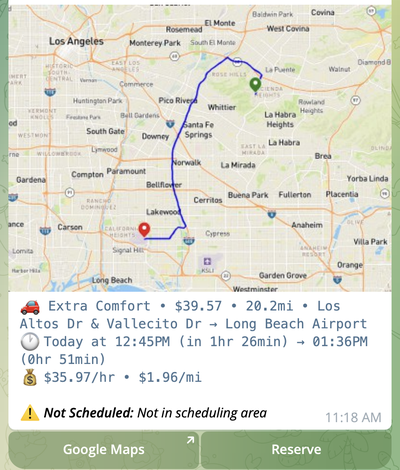
The ride is within your Search Area (5-mile buffer) but outside your Schedule Area.
No Auto-Schedule Rules Matched
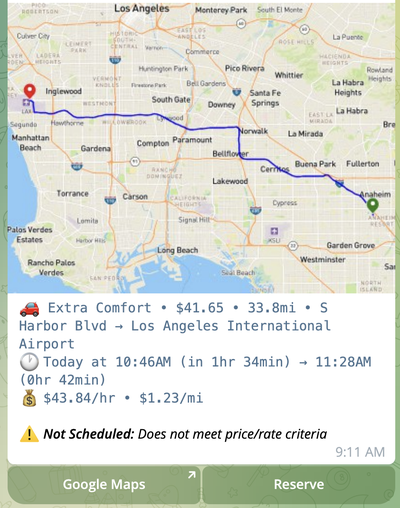
The ride didn't meet any of your auto-schedule rule criteria.
You can still attempt to book any notified ride manually by clicking Reserve, even if it wasn't auto-scheduled.
Auto-Scheduled Rides ✅
When the bot successfully auto-schedules a ride, you receive a confirmation notification showing ride details and which rules matched:
