⏸️ Pause Scheduling
Temporarily block auto-scheduling for specific time periods without changing your regular configuration.
Overview
Pause Scheduling allows you to create temporary "blackout" periods when the bot won't auto-schedule rides, even if they match all your rules and fall within your Weekly Schedule.
Key features:
- Create pause periods for hours, days, or custom date ranges
- Multiple pause periods can be active simultaneously
- Enable/disable individual pauses without deleting them
- Pauses don't affect ride notifications (you'll still receive alerts)
When to Use
| Scenario | Solution |
|---|---|
| Doctor's appointment tomorrow 2-4 PM | Add pause for tomorrow and specify those hours |
| Family vacation Dec 24-26 | Add multi-day custom pause period |
| Need a break for the next few hours | Quick "pause for X hours" |
Pause periods are ideal for temporary schedule changes. For permanent changes, modify your Weekly Schedule instead.
How to Access
- Type
/configin the bot - Select ⏸️ Pause Scheduling
Adding Pause Periods
Option 1: Pause for Next X Hours
Quick way to pause auto-scheduling for a few hours.
- Click ⏱ Add pause for next X hours
- Select duration:
1,2,3,4,5, or6hours - Or type a custom value (e.g.,
1.5for 1 hour 30 minutes)
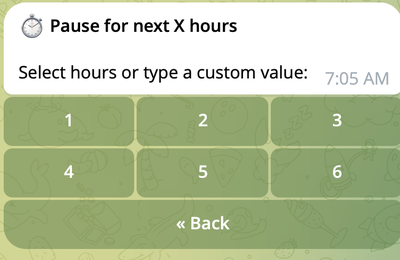
The pause starts immediately and ends after the selected duration.
Option 2: Pause for Today/Tomorrow
Block the rest of today or all of tomorrow.
- Click 📅 Add pause for today or 📅 Add pause for tomorrow
- Select start time (hour, then minute)
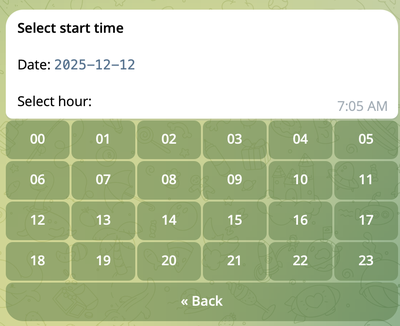
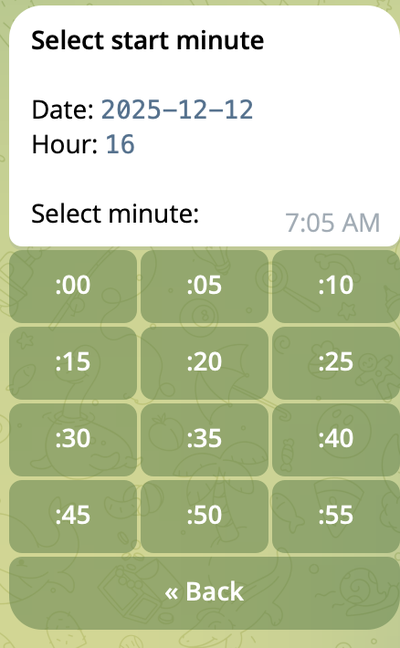
- Select end time (hour, then minute)
If end time is before start time, the pause extends to the next day.
Option 3: Custom Date and Time
Create multi-day pause periods with precise control.
- Click 📆 Add pause for custom date and time
- Select start date from calendar
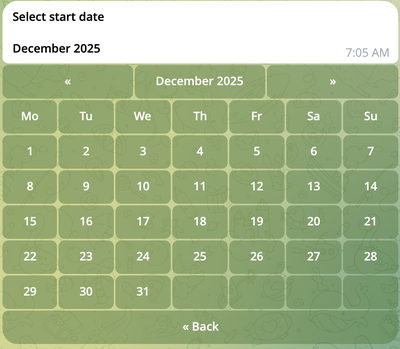
- Select start time (hour, then minute)
- Select end date from calendar
- Select end time (hour, then minute)
Managing Pause Periods
View Active Pauses
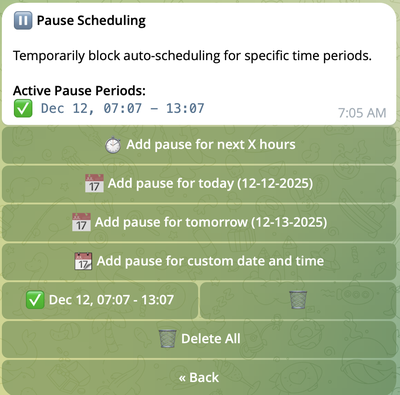
The main Pause Scheduling menu shows all configured pause periods:
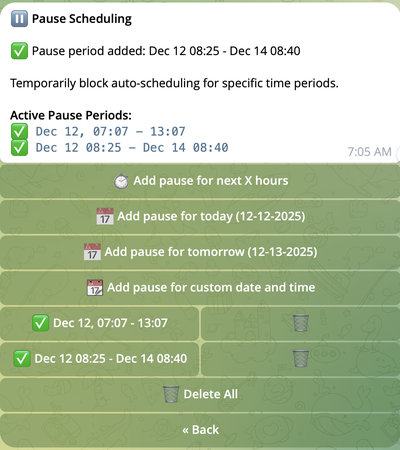
Each pause displays:
- ✅ Enabled / ⬜️ Disabled status
- Start and end date/time
- Whether it's currently active
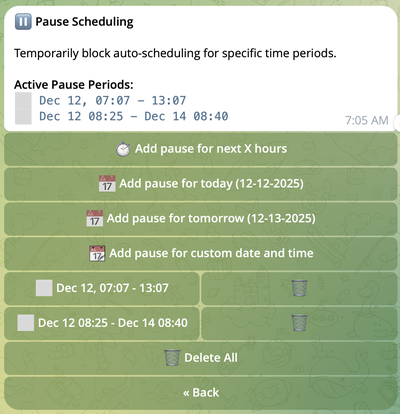
Enable/Disable a Pause
Click on any pause period to toggle its status:
- ✅ Enabled – Pause is active, auto-scheduling blocked during this period
- ⬜️ Disabled – Pause is ignored, auto-scheduling works normally
Delete a Pause
- Click on 🗑 button next to the Delete Pause Period**
- Select the pause(s) to delete
- Confirm deletion
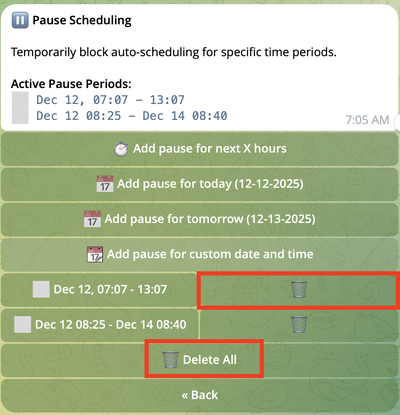
To delete all pauses at once, click 🗑️ Delete All.
How Pauses Affect Scheduling
| Condition | Result |
|---|---|
| Ride starts during active pause | ❌ Not auto-scheduled |
| Ride starts during disabled pause | ✅ Can be auto-scheduled |
| Ride matches notification rules | 📱 Notification sent regardless of pauses |
| Manual booking via Reserve button | ✅ Works regardless of pauses |
Pause priority: Pauses are checked first, before Weekly Schedule and Auto-Schedule Rules. If a ride starts during an active pause, it won't be auto-scheduled even if it matches all other criteria.
Examples
Example 1: Quick Break
Scenario: Need 3 hours to handle personal errands.
Setup:
- ⏱ Add pause for next X hours → Select
3
Result: Auto-scheduling paused for the next 3 hours. Notifications continue normally.
Example 2: Day Off Tomorrow
Scenario: Taking tomorrow off for a family event.
Setup:
- 📅 Add pause for tomorrow → Start:
00:00→ End:23:59
Result: No rides auto-scheduled for the entire day tomorrow.
Example 3: Vacation Period
Scenario: Family vacation from Dec 24 to Dec 26.
Setup:
- 📆 Add pause for custom date and time
- Start date: Dec 24 → Start time:
00:00 - End date: Dec 26 → End time:
23:59
Result: No auto-scheduling for 3 days. You'll still receive ride notifications.
Best Practices
✅ Do:
- Use "pause for X hours" for quick, short-term breaks
- Use custom date/time for planned vacations or multi-day events
- Disable pauses instead of deleting if you might reuse them
- Remember to re-enable or delete pauses when you're ready to work again
❌ Don't:
- Use pauses for permanent schedule changes (use Weekly Schedule instead)
- Forget about old pauses – they might block scheduling unexpectedly
- Create overlapping pauses – one active pause is sufficient
FAQ
Q: Will I still receive ride notifications during a pause? A: Yes. Pauses only affect auto-scheduling, not notifications.
Q: Can I manually book rides during a pause? A: Yes. Click the Reserve button on any notification to book manually.
Q: What happens to expired pause periods? A: They remain in your list but no longer affect scheduling. Delete them to keep your list clean.
Q: Can I have multiple pause periods active at the same time? A: Yes. If any active pause covers a ride's start time, the ride won't be auto-scheduled.